Before guiding you through the process of how to create a Windows 8 bootable USB drive, you need to know some requirements and tips listed below:
You need to prepare a 13 GB or larger USB drive. Also, it could be external USB hard drive.
You need to prepare a Windows 8 installation disc, ISO file, or ESD file.
Tips:
You can create a Windows 8 to go bootable usb on any computer installed Windows operating system. NOneed Windows 8 Enterprise Edition.
The larger the USB drive is, the better the result will be. Meanwhile, certified USB 3.0 drives coming from vendors like IronKey, Kingston, Spyrus and others are recommended.
If you have a Windows 8 installation disc, you can directly insert it in CD/DVD-ROM and then continue.
If you have or download a Windows 8 ISO/ESD installation file, please extract it to a proper place with WinRAR or WinZIP, or mount it as virtual drive by using third-party ISO mounting or burning software such as DAEMON Tools Lite.
Step by Step Guide to Install Windows 8 on USB Drive
Step 1: Plug the USB drive into a USB 3.0 or USB 2.0 port on the computer. Make sure that it is detected by your machine.
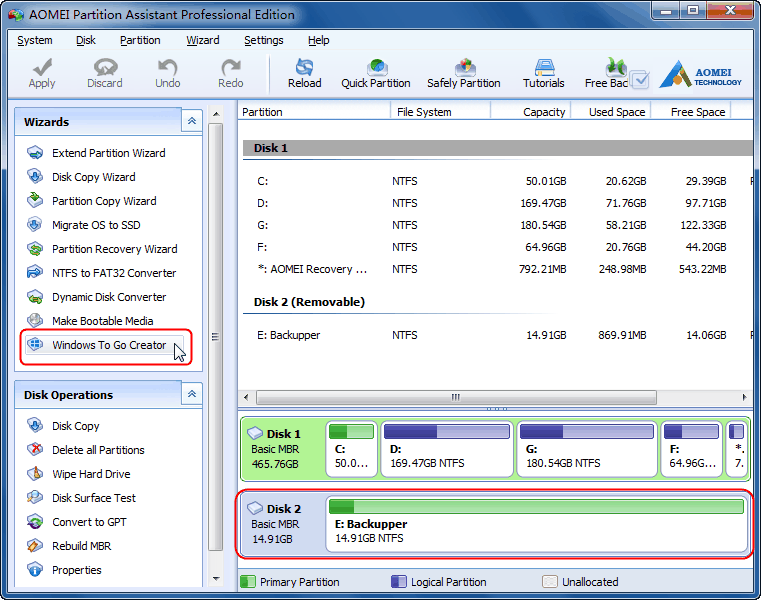
Step 2: Download, install, and launch AOMEI Partition Assistant. The program will automatically display your USB drive, and here is Disk 4. Then, click "Windows To Go Creator" in the left side.
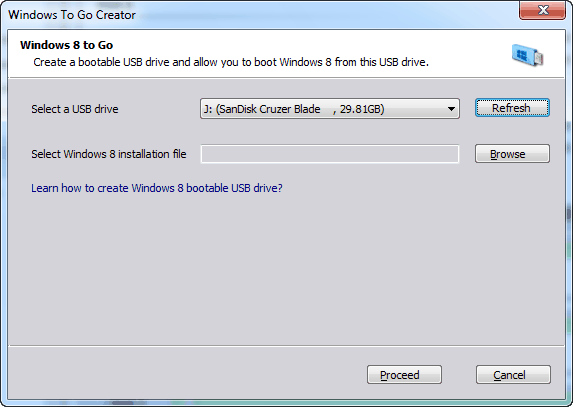
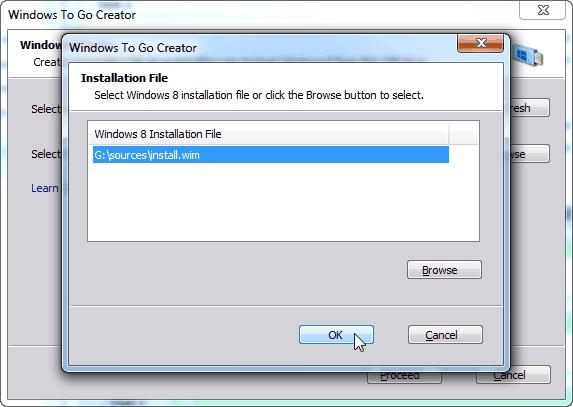
Step 3: In the pop-up window, click "Browse" button to select Windows 8 installation file (named install.wim or install.esd) which locates under \sources folder. If the program doesn’t detect it automatically, please click "Browse" to select manually. After that, click "OK" to continue.
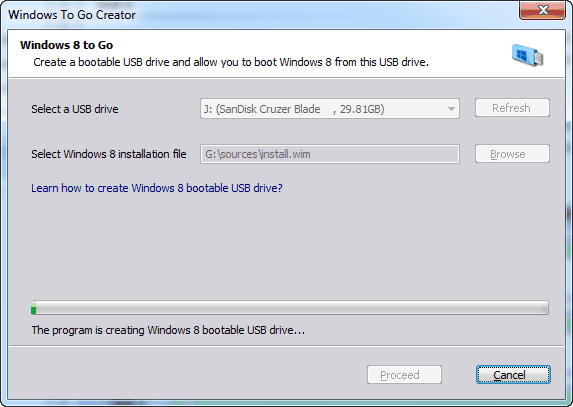
Step 4: Click "Proceed". The program will inform you about something important. The data on this USB drive will be deleted and the partition on USB drive will be formatted as NTFS file system. To back up data, free backup software, like AOMEI Backupper Standard, is recommended. After clicking "Yes", creating Windows 8 bootable USB drive will begin.
When the task is completed, you can plug the Windows 8 bootable USB drive into any computer with any operating system at anywhere, enter BIOS setting, and change the firmware boot order to USB first and save. After that, you will boot into Windows 8. By the way, AOMEI Windows To Go Creator also supports installing Windows 8.1 on USB drive.
Ever wanted a copy of Windows you can take with you wherever you go, to use on any computer you want? It's possible: here's how to install a portable version of Windows 8 on a USB hard drive that you can take anywhere.
The Enterprise version of Windows 8 has a feature called Windows To Go that lets you install a portable version of Windows on a "certified" flash drive. Unfortunately, most of us don't have the Enterprise edition of Windows 8, nor a certified flash drive. However, there is a tool called WinToUSB that can essentially do the same thing, no matter what version of Windows you have. Here's how it works.
(Note that this is different from installing Windows from a USB drive, which allows you to install Windows on a computer that doesn't have a CD drive. Here, we're actually installing Windows on a USB drive so we can run it from a drive on any computer you want, and take it with you for troubleshooting, remote work, and so on.
What You'll Need (and What You'll Get)
You only need a few simple things to make this work. They include:
A Windows installation disc or ISO image. We recommend using Windows 8. Windows 8 will allow you to use your portable installation on any computer, but Windows 7 is not as portable and may have driver or activation issues if you use it on other computers.
A USB drive. An external hard drive is preferred over a flash drive, since it will run significantly faster. USB 2.0 will suffice, but if you have a USB 3.0 drive, we recommend using it (though it will only work if you're installing Windows 8, not Windows 7).
WinToUSB. This is the simple program that will walk you through the installation process.
As you can see, there are a few caveats. We tested this using Windows 8.1 on a USB 2.0 external hard drive, and the results were quite satisfactory. It ran at a reasonable speed, automatically installed the drivers it needed, and worked on multiple computers. But your mileage may vary if you try to use Windows 7 or a flash drive.
Step One: Install WinToUSB
First, download WinToUSB and install it on your system, just like you would any other program. Note that you'll need to be an administrator on the computer you install WinToUSB on.
While you're at it, find your Windows installation disc or ISO and get it ready, because you're going to need it in the next step. If you don't have one, you can download one from Microsoft.
Step Two: Create Your Portable Drive
Next, you just need to start up WinToUSB and follow its (short) wizard to create your portable installation. There are only a few steps involved:
1. Select Your Installer Media
When you start WinToUSB, you'll be prompted to choose your ISO file or disc. Click the browse button to find it, select the operating system you want to install, then click Next.
2. Select Your Hard Drive
Next, you'll be asked to select your hard drive and choose the system and boot partitions. You can find more information about this here, but with a USB hard drive you should just be able to select the first partition as system and the second partition as boot, as shown above. Make sure your drive is formatted as NTFS.
3. Start the Installation
When you click next, the installation will begin. I found it only took a half hour or so, though your mileage may vary depending on the speed of your hard drive.
Step Three: Boot From Your Portable Drive
That's it! It's actually a very quick and easy process, and when it's done, you can start running your portable installation on whatever computer you want. To do so, just plug it in, restart the computer, and boot from the drive just like you would a CD or flash drive (on my computer, that meant pressing F11 at boot and choosing the drive from a list).
The first time it starts, it'll install the necessary drivers and take awhile to boot, after which you can set up your machine just like you would a new Windows 8 PC. You may have to manually adjust some things like screen resolution, but once you're done, you can shut it down, move it to another computer, and run it from there. It may go through the driver installation step on each new computer (which means it'll take awhile to boot), but I found it moved between my two PCs quite well. Enjoy!
IFTTT's new Do apps-- Do Button, Do Note and Do Camera -- are simple, yet versatile tools to help you automate and simplify the tasks you do everyday. While the apps are well designed and fun to use, they can be a bit overwhelming at first, because there are hundreds of ways to use them.
I'm highlighting the some of the best recipes available for each of the apps, most of which you can create in just a few steps. Still stumped on what to do with the Do apps? Check out the collections that IFTTT created, which are available in each app.
First things first
Before you use the Do apps, you'll need an IFTTT account, which you can get for free either within the apps or at IFTTT.com.
Next, activate the channels you want to use by signing into your accounts on each. Channels are the services that are connected to IFTTT and they include Dropbox, Twitter, Google Drive, Instagram, SMS, WeMo, Phillips Hue, Pocket and Fitbit. All told, IFTTT has 169 channels that you can use.
Now you're ready to login to the Do apps to start creating new recipes. Recipes are the formulas that IFTTT uses to complete an action. When you press one of the buttons in the Do apps, the recipe tells the app what to do in response. You can either browse existing recipes in the app, or create a brand-new one.
Here's how to create a new recipe: Tap the mortar and pestle icon, tap the grey plus sign and then press the black plus sign. Pick a channel and choose from the available actions you see. Actions vary greatly by channel, so you might need to look around and experiment to find the right action for what you want to do.
Once you choose an action, you can edit the recipe from the available options. That usually includes changing the recipe title or editing a message that's sent. You can often attach extra information to your recipe, such as location information or a shareable URL. Tap "Add Recipe" to save the recipe and you're done.
Do Button
Email someone when you're on your way home.
You can't yet send someone an SMS message with the Do apps, but you can send an email. Instead of typing out a message each day to let your roommate, parent or partner know that you're heading home, you can streamline the process by tapping the Do Button each time. By default, IFTTT will also send a map photo of your current location with your message too.
Here's how: Create a new recipe and select the Gmail channel (unfortunately this doesn't yet work with other email services). Tap the "Send an email" action, then type in the email addresses where you want to send the message. You can then customize the email subject and the message itself, saying whatever you want.
Turn off your lights without getting out of bed.
This recipe is like the Clapper, but more high-tech. If you have the Phillips Hue smart bulbs, you can use the Do Button app to turn off your lights quickly, just like hitting a light switch, but much more convenient because you don't need to get up. You can also do this if you have a lamp plugged into a Belkin WeMo switch.
Here's how: Pick the Phillips Hue or WeMo switch channel and choose the "Toggle on/off" action, available in both channels. Pick the lights or switches you want to use from the drop-down menu and save your recipe.
Tweet a message to Twitter.
I don't tweet very often and I'd like to change that. One way to get in that habit is to create a message that I can post to the social network whenever I want, without much effort. I personally choose to set my tweet to "Good Morning," but it can be anything you want to tweet over and over.
Here's how: Create a new recipe and select the Twitter channel. Choose "Post a tweet" from the action list and then type in the message you want to share every time you press the button.
Do Note
Append a new item to an existing to-do list in Evernote.
While I love Evernote for saving notes and to-do lists, I don't love that it can be time consuming to get into the app, find my to-do list and add a new item to it from the mobile apps. This recipe makes that process much, much easier. What's really great is that the any new item you type into the recipe is appended to your existing note, just as if you edited the note in Evernote.
Here's how: In the Evernote channel, select "Append a to-do to note." If you already have an existing to-do list in Evernote you want to use, enter that note's name in the Title field, otherwise, you can simply change that field to whatever title you want your new note to have. You can also choose which notebook to save the note, or leave that field blank to choose your account's default notebook.
Create a new Google Calendar event.
Creating a new calendar event couldn't be any easier with this recipe. The only drawback is that because you're not looking at your calendar, you might miss other conflicting events. It's also only available in English.
The upshot is that you can either type in a very specific event, like "5:30pm every other Wednesday Happy Hour at The Bar," or something as simple as "2pm grab coffee with Sarah" to create a new event. It's also very easy to create the recipe.
Here's how: Create a new recipe and pick the Google Calendar channel. Choose the only action: "Quick add event." Save the recipe and you're done. To use it, just type in any event you want and press the button.
Email yourself a digest of notes every day.
Whether you want to remember big ideas or just to-do items for tomorrow, this recipe will help keep those things fresh in your mind each day. You type out notes throughout the day and then IFTTT will send you a single email with all of those notes together at the time you pick, like 7am each morning or 9pm at night. It's also helpful for compiling a daily reading list of links for the end of the day.
Here's how: Create a new recipe using the Email Digest channel and select "Add to a daily digest." Select the time of day that you want your digest to be delivered and you can tweak the formatting of the notes in the digest. The email is sent to the address on your IFTTT account, not any of the email addresses you use in your channels.
Do Camera
Share photos in one step.
One of my favorite examples of using Do Camera is to share photos you take instantly with someone. This would be a great option for new parents who want to share pictures with grandparents, without fussing with their phones. Because Do Camera works as both a camera app and a means to share the photos it takes, as soon as you press the shutter button, the photo is taken and then sent via email, to Facebook or anywhere else you choose. For this example, I'll use Facebook.
Here's how: In the Facebook channel, select "Upload a photo from a URL." Then, type in the album where you want to share the photos, such as "Family Photos" or "Mobile Uploads." Whatever text is in the Message field will become the photo caption when you upload it, so you can tweak that too.
Back up and organize your vacation photos the moment you take them.
Cloud storage and automatic photo backups mean that our vacation photos are rarely lost, but they aren't always organized. This recipe can help with that.
When you take a photo on vacation (or anywhere), it's immediately added to a folder in Dropbox as soon as you hit the shutter button in Do Camera. Once the vacation is over, you can tweak the recipe to save photos to a new folder for your next trip.
Here's how: In the Dropbox channel, pick the "Add file from URL" action. The recipe will automatically populate the fields with the correct file source, which is the public URL of your photo. You can change the file name if you like, or the Dropbox folder where you want to save your photos.
Remember restaurants, points of interest and other special places.
When you're traveling around a new city, you'll often stumble upon cool places worth remembering. Instead of simply writing them down, you can take a photo and save the location on a map so that you can find it again or share it with someone. One of the easiest ways to do this is with Evernote, but you can also simply email the photos and location data to yourself. The steps are identical, but you'll pick a different channel.
Here's how: In the Evernote channel, select the "Create a note" action. Tap into the Body field, and at the end of the text that's already there, add the HTML phrase <img src="{{LocationMapImageURL}}">. Doing that will insert a map of the exact location of where you took the photo, so you'll never forget where it was. You can then change the other fields to tweak the note title and the notebook where you'll save the photos.
These are just a few of the ways you can use the Do apps by IFTTT and there are many more recipes just waiting for you. Now that you have the tools, go out there and start automating your life with Do and IFTTT. Also, share your favorite recipes in the comments below -- I'd love to see what you create.